Progress Learning macOS Update Process 2026

This article shows you how to install macOS updates on your company Mac, for both minor updates and major upgrades. Your Mac uses Apple's built in Software Update to remind you about updates and install them. IT manages when updates become available.
The screenshots may show macOS Tahoe 26. Your version numbers may look a little different.
Before you start
- Save your work and close your apps. Installing a macOS update restarts your Mac.
- Plug in your Mac. A laptop must be connected to power to download updates automatically.
- Stay connected to the internet.
- Plan the time. Plan about 30 minutes for a minor update and 30 to 60 minutes for a major upgrade. Pick a time outside your meetings, such as the beginning of your day, lunch, or the end of day.
- Do not close the lid or put your Mac to sleep while the update installs. The screen may go dark, show a progress bar, or restart more than once. This is normal.
- You do not need an administrator password to install updates.
Types of updates
Type | What it is | When it appears on your Mac | What you do |
Minor update | Security fixes and bug fixes for the macOS version you already have, for example 27.0.1 - 27.2 | About three weeks after Apple releases it | Your Mac downloads and installs it on its own. Restart when macOS asks. |
Major upgrade | A new version of macOS with a new name and new features | On the date IT announces | Click Upgrade Tonight or Upgrade Now in Software Update (Step 4). |
Background security update | Small security fixes from Apple | When Apple releases it | Nothing. These install on their own and do not restart your Mac. Some take effect at your next restart. |
IT tests updates before they reach company Macs. You may see news about an update before it appears on your Mac.
Your Mac may list a minor update and a major upgrade at the same time. They are separate. Install the minor update when macOS asks, and start the major upgrade when you have 30 to 60 minutes free.
Step 1: Watch for the update notification
- When an update is ready, a notification appears in the top right corner of your screen. You can install the update right away or later that night.
- Click the notification to open Software Update. You can also open Software Update yourself (Step 2).
- If you missed the notification, click the date and time in the menu bar. Notification Center opens and shows your recent notifications.
Step 2: Open Software Update
- Click the Apple menu (the Apple logo) in the top left corner of your screen.
- Choose System Settings.
- Click General in the sidebar. You may need to scroll down.
- Click Software Update on the right.
Shortcuts:
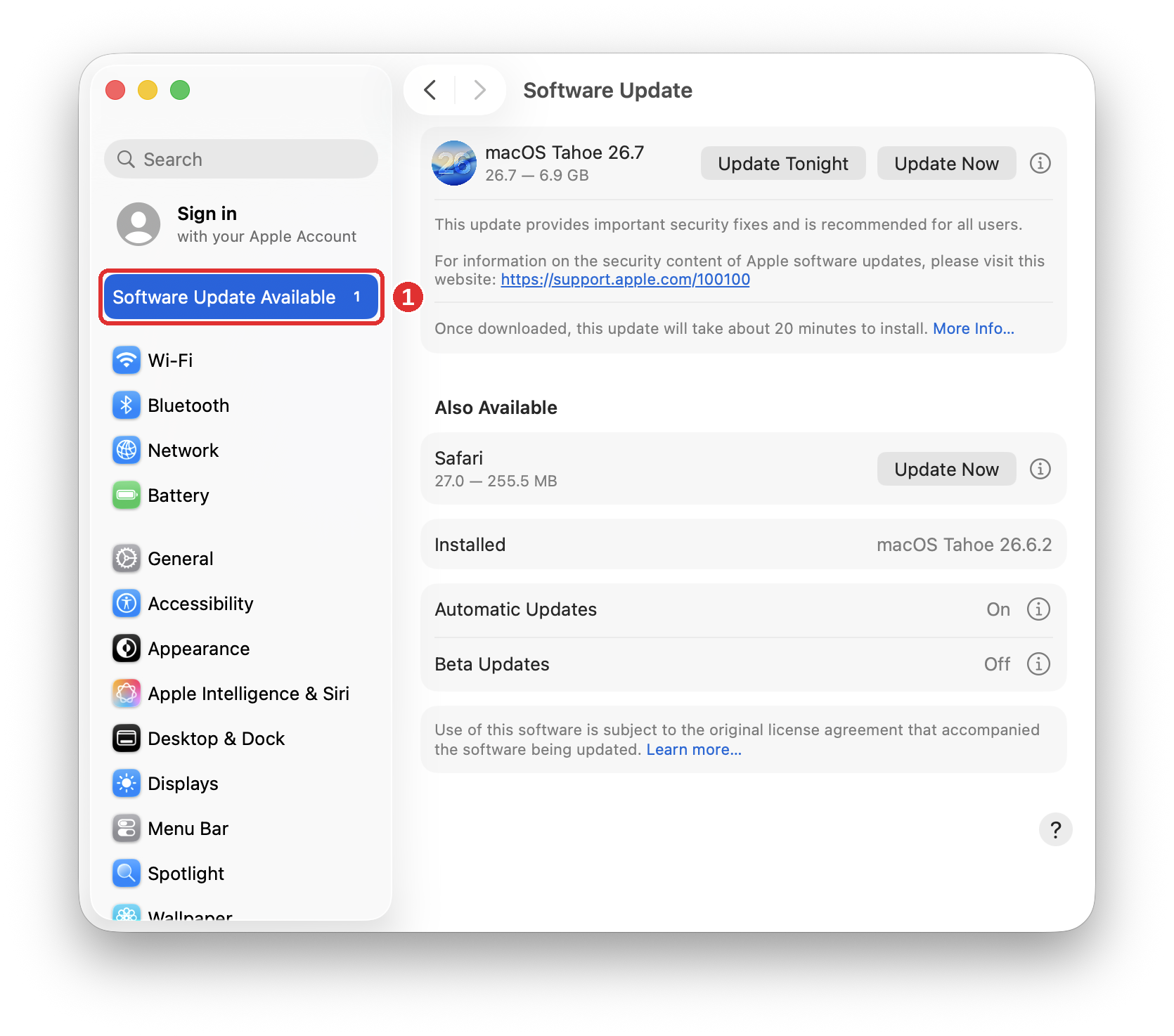
System Settings may show Software Update Available near the top of the sidebar (1). If you see it, click it to open Software Update.
Press Command Space, type Software Update, and press Return.
Step 3: Install a minor update
- Find the update at the top of the Software Update page. The update shows its name, version number, and size.
- Choose when to install:
- Update Tonight (1) installs the update overnight. Leave your Mac turned on, plugged in, and connected to the internet overnight.
- Update Now (2) installs the update right away. If the update has already downloaded, this button says Restart Now.
- A window may ask for your password. Enter the password you use to log in to your Mac, then press Return.
- Wait while the update installs. Your Mac restarts, possibly more than once, and then shows the login screen.
- Log in. The update is complete.
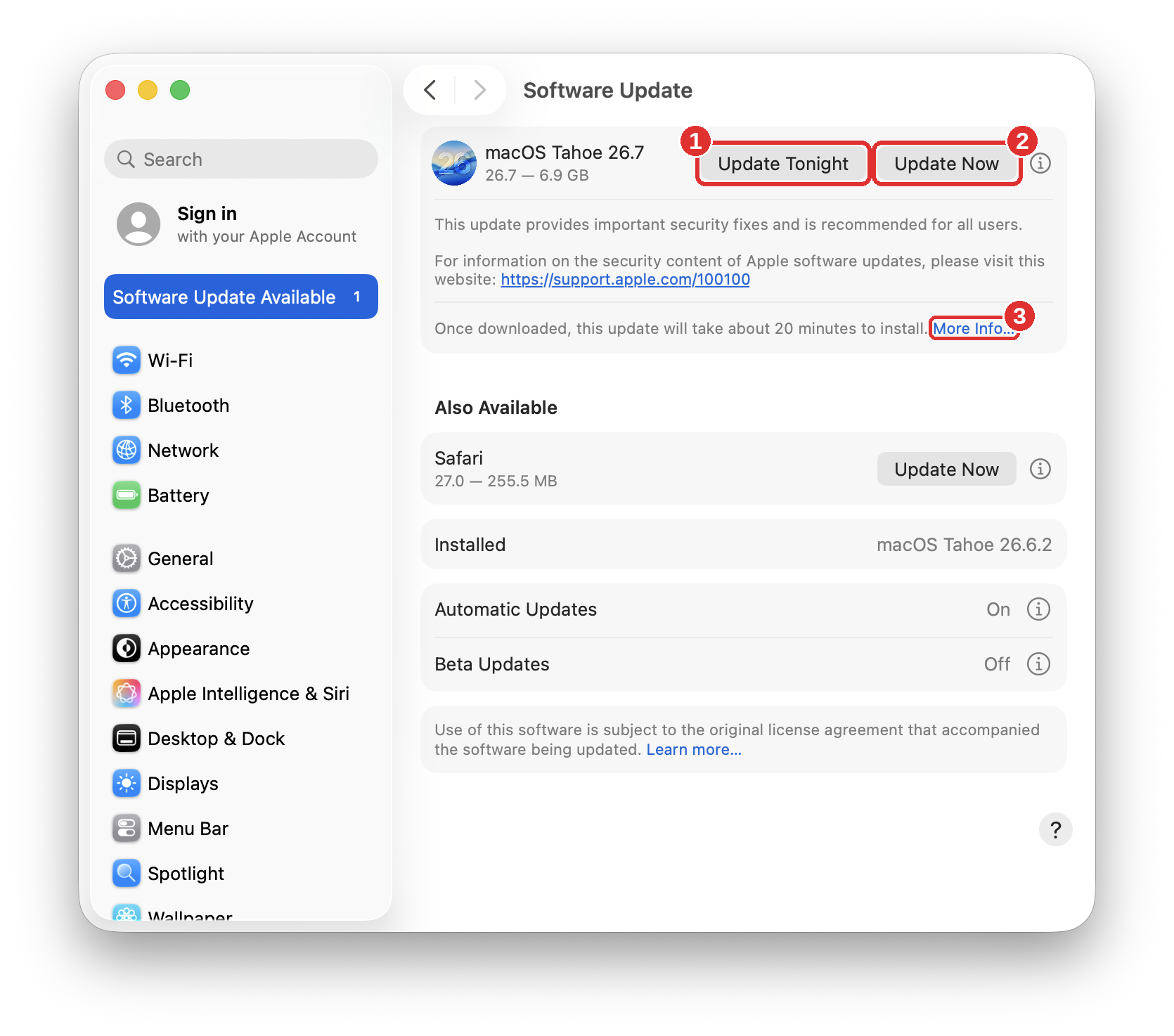
To see the update details first, click More Info… (3). The details window shows:
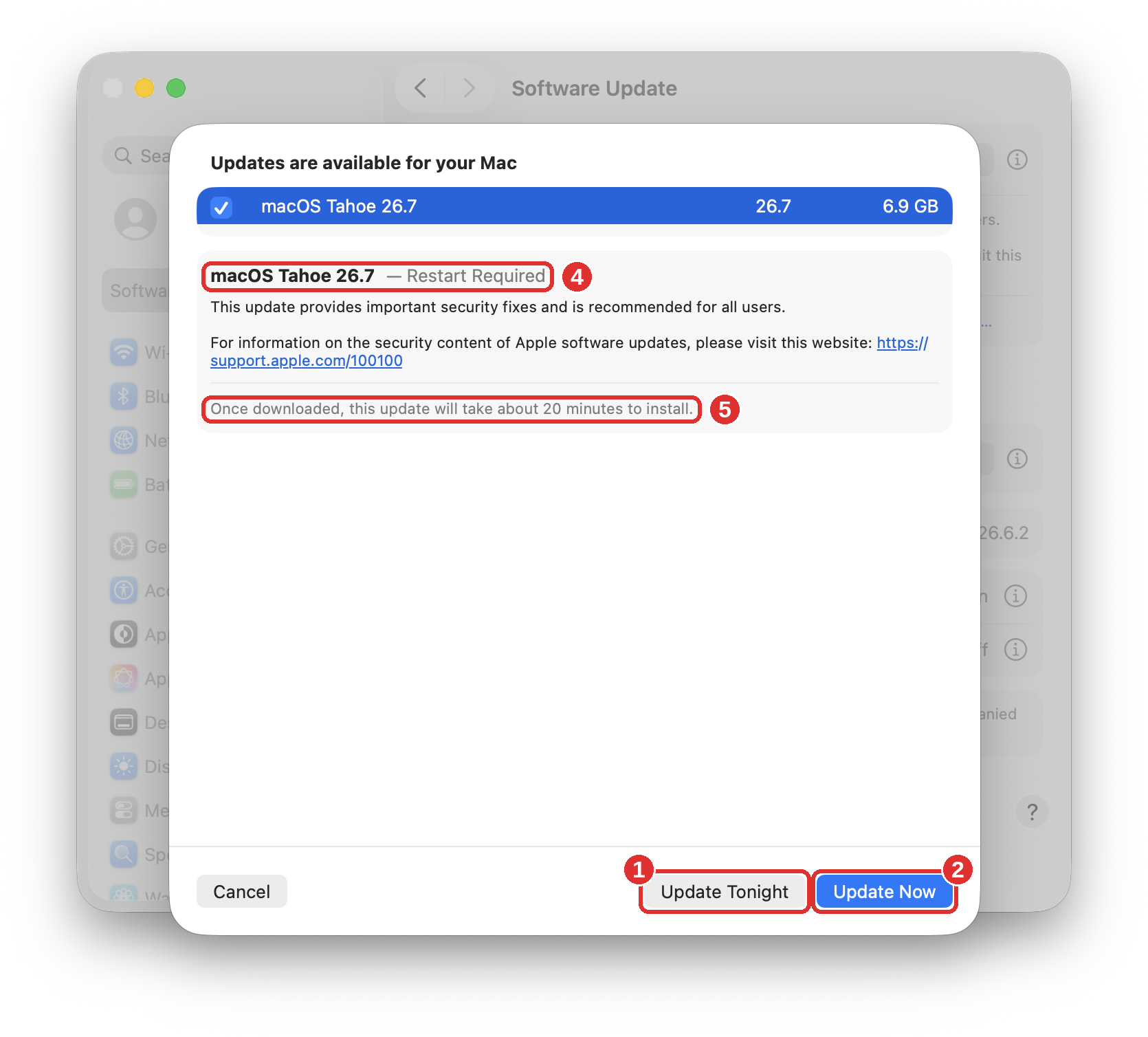
- If the update needs a restart, for example Restart Required (4)
- About how long the update takes to install after it downloads (5)
You can click Update Tonight (1) or Update Now (2) in this window too. To close the window without installing, click Cancel.
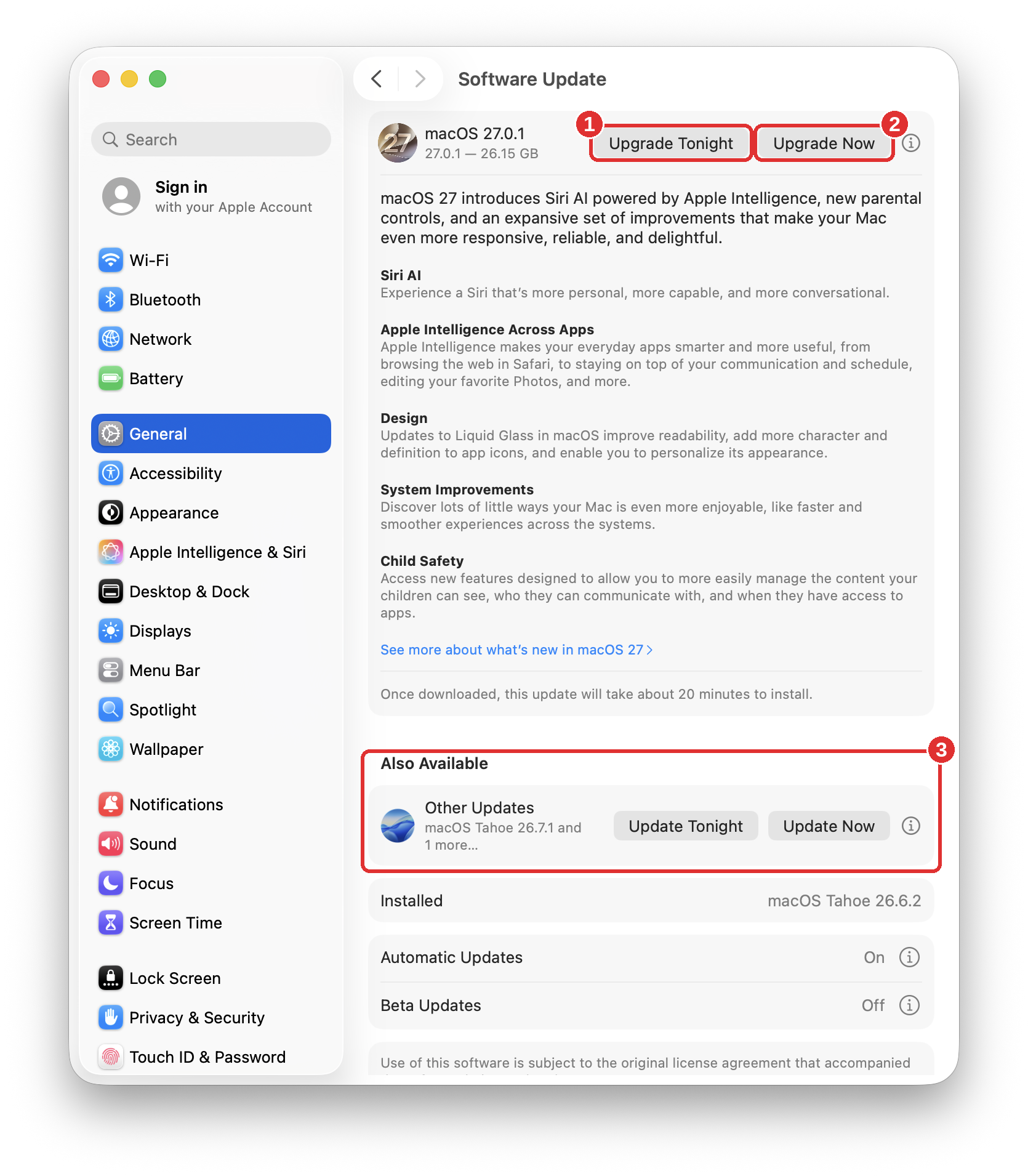
Other updates: Software Update may also list other updates under Also Available, for example Safari. To install one, click Update Now next to it.
Step 4: Install a major upgrade
A major upgrade installs a new version of macOS, for example macOS 27. Major upgrades do not install automatically. You start them yourself.
- On the date IT announces, open Software Update (Step 2).
- Find the upgrade at the top of the page. It shows the new version number and the download size. Major upgrades are large downloads.
- Click Upgrade Tonight (1) or Upgrade Now (2). The table below shows what each button does.
- A window asks for your password. Enter the password you use to log in to your Mac, then press Return.
- Follow any other on screen steps.
Button | What happens | What you do |
Upgrade Tonight (1) | Your Mac downloads the upgrade and installs it overnight. Your Mac restarts during the install, possibly more than once. | Before you leave for the day, save your work and close your apps. Leave your Mac turned on, connected to power, and connected to the internet overnight. If your Mac is a laptop, leave the lid open. The next morning, log in. |
Upgrade Now (2) | Your Mac downloads the upgrade, then restarts to install it. The screen may go dark or show a progress bar, and your Mac may restart more than once. | Save your work and close your apps before you click. Start when you can be away from your Mac for 30 to 60 minutes or more. Keep your Mac plugged in and connected to the internet. When the login screen appears, log in. |
To confirm the upgrade, choose Apple menu > About This Mac. The new macOS version appears.
Upgrade buttons install a new version of macOS. Update buttons install updates for the version you have now. Software Update may list updates for your current version under Also Available (3). They are separate from the upgrade. To install them, see Step 3.
Do I have a deadline?
Once IT announces a minor update, you have 10 days from the announcement date to install it. If it is not installed by then, IT will contact you, because the update will need to be enforced.
All major upgrades are enforced. You have 10 days from IT’s announcement to install the upgrade before IT contacts you.
Check that your Mac is up to date
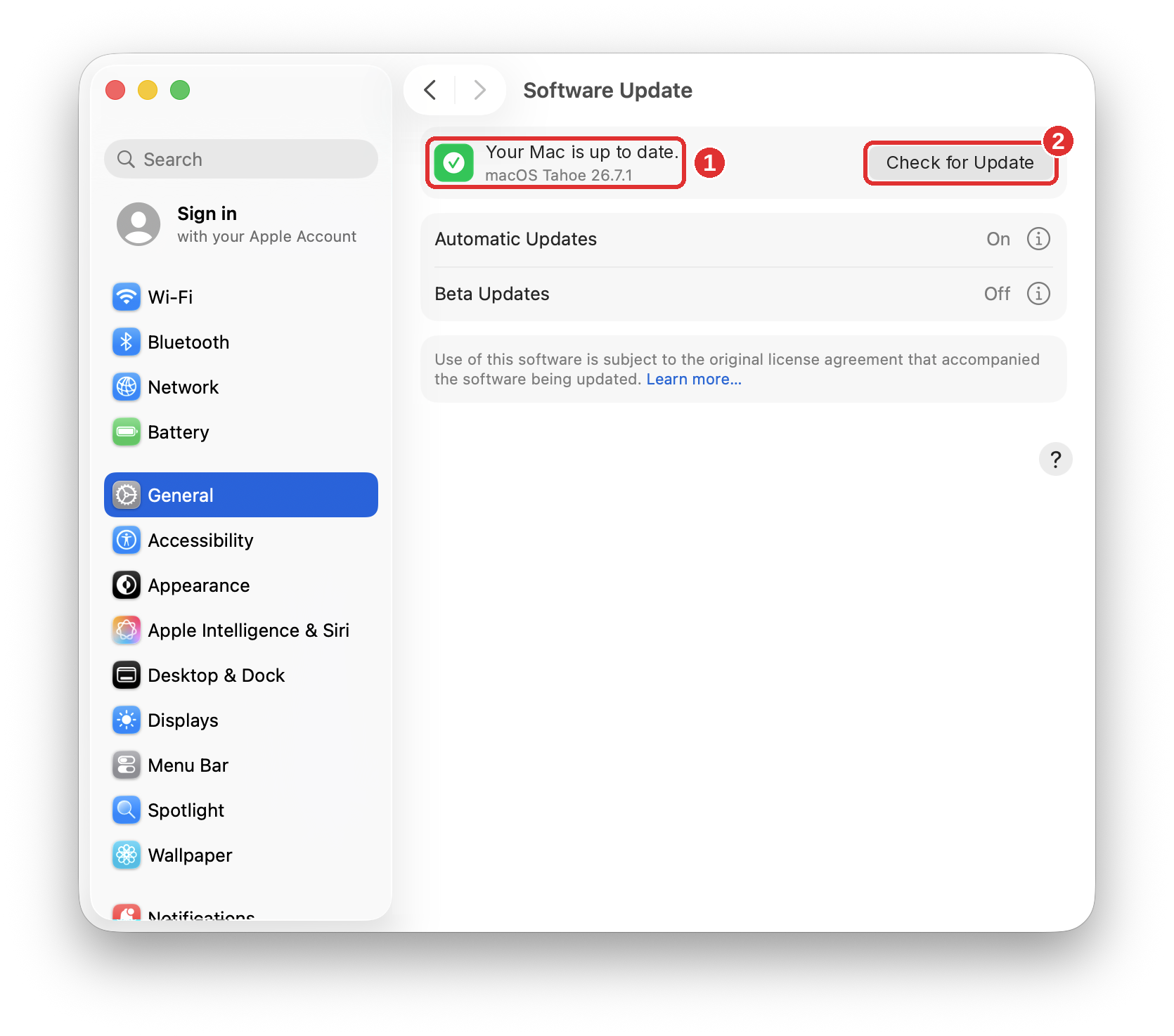
- Open Software Update (Step 2).
- If no updates are waiting, Software Update says Your Mac is up to date and shows your macOS version (1).
- To check again, click Check for Update (2).
- To see your macOS version at any time, choose Apple menu > About This Mac.
Troubleshooting
Problem | What to do |
You don't see an update you read about in the news. | This is expected. Minor updates reach company Macs about three weeks after Apple releases them. Major upgrades arrive on the date IT announces. |
The password window asks for an administrator name and password. | Stop and contact IT. You should not need an administrator password. |
Software Update says there is not enough storage space. | Empty the Trash and delete large files you no longer need, then try again. If you still do not have enough space, contact IT. |
Update Tonight or Upgrade Tonight did not install. | Your Mac must stay on, connected to power, and connected to the internet overnight. If your Mac is a laptop, leave the lid open. Try again, or click Update Now or Upgrade Now at the end of your day. |
The progress bar seems stuck for a long time. | Keep your Mac plugged in and do not turn it off. Contact IT. |
Your Mac does not finish starting up after an update. | Contact IT. |
Need help?
- Submit a ticket on our IT Helpdesk.
- Message the IT team on Slack.
- Email it@progresslearning.com.
- Support hours: Monday to Friday, 8:30 AM to 6:00 PM Eastern Time.
IT contacts:
Aarron Anderson | Senior IT Specialist | aarron.anderson@progresslearning.com
Sam Gunter | Manager of IT & Salesforce Administration | sam@progresslearning.com